
Modify users
 {% endstep %}
{% step %}
Click on your **name** in the account details menu in the **top right corner** to display the management overview page
{% endstep %}
{% step %}
Click on your **name** in the account details menu in the **top right corner** to display the management overview page
 {% endstep %}
{% step %}
For **documentation** about how to manage users read the next section.
{% endstep %}
{% endstepper %}
## Managing Users in GRIP
The information below explains **how to manage users**, including adding and removing users, and managing roles and permissions.
Once you have accessed the **User Management** section in **GRIP**, you can perform several actions to **control access** within your organization.
### **What functionalities do you have**
**Review existing users, add and delete users**\
View the list of all users in your organization, including their roles and assigned services. Invite new team members by creating users accounts or deleting users who no longer need access to your services.
**Edit or give permissions to an added or existing user**\
Modify user information, roles and permissions to ensure they have the correct level of access to your services.
{% hint style="info" %}
**Why this matters**\
Managing users and permissions in GRIP ensures that only **authorized** individuals can access your applications and IoT services. This helps maintain **security** and **compliance** across your organization.
{% endhint %}
## Review existing users, add and delete users
In the User Management table, you can see all current users along with their assigned roles and permissions. This overview helps you quickly check who has access to which services.
**Add, Remove or Modify Users**
1. To add a new user, click **Add User** at the top of the page
2. To modify a user, click the **three dots** ⋮ and select **Edit**
3. To remove a user, click the **three dots** ⋮ and select **Deactivate** or **Delete**
{% endstep %}
{% step %}
For **documentation** about how to manage users read the next section.
{% endstep %}
{% endstepper %}
## Managing Users in GRIP
The information below explains **how to manage users**, including adding and removing users, and managing roles and permissions.
Once you have accessed the **User Management** section in **GRIP**, you can perform several actions to **control access** within your organization.
### **What functionalities do you have**
**Review existing users, add and delete users**\
View the list of all users in your organization, including their roles and assigned services. Invite new team members by creating users accounts or deleting users who no longer need access to your services.
**Edit or give permissions to an added or existing user**\
Modify user information, roles and permissions to ensure they have the correct level of access to your services.
{% hint style="info" %}
**Why this matters**\
Managing users and permissions in GRIP ensures that only **authorized** individuals can access your applications and IoT services. This helps maintain **security** and **compliance** across your organization.
{% endhint %}
## Review existing users, add and delete users
In the User Management table, you can see all current users along with their assigned roles and permissions. This overview helps you quickly check who has access to which services.
**Add, Remove or Modify Users**
1. To add a new user, click **Add User** at the top of the page
2. To modify a user, click the **three dots** ⋮ and select **Edit**
3. To remove a user, click the **three dots** ⋮ and select **Deactivate** or **Delete**
Modify users
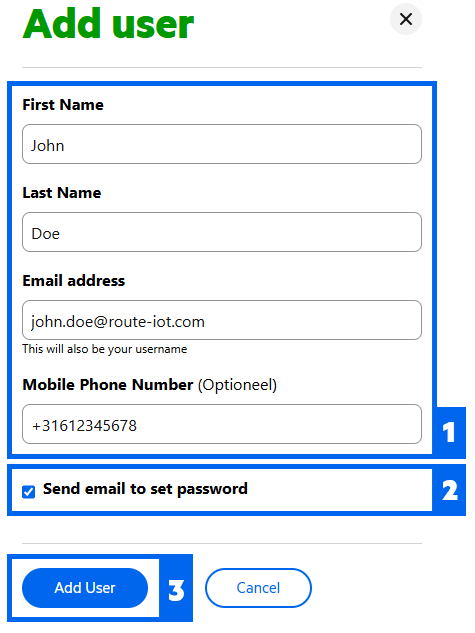 {% hint style="info" %}
For **Freemium** users a phone number is **optional**.
{% endhint %}
After adding the user, the next screen opens where you can optionally enter **additional** information about the user. This information is **not required** for using your account, but it can be used for your own administration.
4. Add **additional** general details *(optional)*
5. Add even more information like **job title** or **office location** *(optional)*
6. Select the **preferred** language setting
7. Click the **Save Changes** button
{% hint style="info" %}
For **Freemium** users a phone number is **optional**.
{% endhint %}
After adding the user, the next screen opens where you can optionally enter **additional** information about the user. This information is **not required** for using your account, but it can be used for your own administration.
4. Add **additional** general details *(optional)*
5. Add even more information like **job title** or **office location** *(optional)*
6. Select the **preferred** language setting
7. Click the **Save Changes** button
 {% endstep %}
{% endstepper %}
### Assigning Services and Roles
{% stepper %}
{% step %}
### Select Services and Roles
1. Navigate to the **Services and Roles** tab
2. If the user should be able to **manage** other users, enable the **Admin** role
3. Click **Save Changes**
4. Click **+ Assign services and roles** button to add specific **services**
{% endstep %}
{% endstepper %}
### Assigning Services and Roles
{% stepper %}
{% step %}
### Select Services and Roles
1. Navigate to the **Services and Roles** tab
2. If the user should be able to **manage** other users, enable the **Admin** role
3. Click **Save Changes**
4. Click **+ Assign services and roles** button to add specific **services**
 Select the **appropriate** services and roles based on the user’s **responsibilities**. The example below grants the user **full access** to the features within the KPN Things Portal.
 {% hint style="danger" %}
The **admin** is **responsible** for assigning the correct permissions to the user. Please note that someone with admin rights can also grant **themselves** additional permissions.
{% endhint %}
{% endstep %}
{% endstepper %}
## Services and Roles explained
The below list shows the **available roles** for services that are used within the **KPN IOT solution** and describes what **levels** of access each of the roles gives to the user in **KPN Things portal**.
{% hint style="danger" %}
The **admin** is **responsible** for assigning the correct permissions to the user. Please note that someone with admin rights can also grant **themselves** additional permissions.
{% endhint %}
{% endstep %}
{% endstepper %}
## Services and Roles explained
The below list shows the **available roles** for services that are used within the **KPN IOT solution** and describes what **levels** of access each of the roles gives to the user in **KPN Things portal**.

The central identity solution behind every account
| Role | Description | Access |
|---|---|---|
| Admin | Full user management, including own account. | View and manage services and roles of other users; add, modify or remove users. |

The foundation for your IoT applications
| Role | Description | Access |
|---|---|---|
| Things Creator - Admin | Full access to Things Creator tab. | Add modify or remove devices types, decoders and scripts. |
| Things Creator - Read Only | Read-only access to Things Creator tab. | View device types, decoders, and scripts. |
| Role | Description | Access |
|---|---|---|
| Things Manager - Admin | Full access to Things Manager tab. | Add, modify, or remove devices, flows, destinations and manage connectivity. |
| Things Manager - Editor | Full access except for deleting to Things Manager tab. | Add, modify, or remove devices, flows, destinations and manage connectivity except the right to delete. |
| Things Manager - Read Only | Read only access to Things Manager tab. | View devices, flows, destinations and connectivity. |
| Role | Description | Access |
|---|---|---|
| Things Support - User | Access to the Things Support tab. | View news, release notes, documents, service status, reports and contact info and recieve service emails. |