> For the complete documentation index, see [llms.txt](https://docs.kpnthings.com/kpn-things/llms.txt). Markdown versions of documentation pages are available by appending `.md` to page URLs; this page is available as [Markdown](https://docs.kpnthings.com/kpn-things/getting-started/tutorials/connect-devices/arduino-mkr-nb-1500.md).
# Arduino MKR NB 1500
Arduino MKR NB 1500 is the fastest start with LTE-M and the Internet of Things. It’s the perfect introduction to IoT for your organization, and is also used in education. Arduino MKR NB 1500 uses its LTE-M connectivity to connect to the internet from anywhere in the world where there is LTE-M coverage.
{% hint style="info" %}
When ordering the Arduino MKR NB 1500 make sure that an antenna is included in the order since it's not delivered with the board
{% endhint %}
Before you can start you need a KPN simcard. You can order 2 free cards via
On this page you will find the window below to order a simcard.
## 1. Setup your Arduino MKR NB 1500
> To connect the Arduino MKR NB 1500 to the computer you must use a USB cable.
### Setup your Arduino environment
* Download the [Arduino IDE](https://www.arduino.cc/en/Main/Software) and follow the installer. We'll use it later on to program the Arduino MKR NB 1500.
* Connect your Arduino MKR NB 1500 to your computer.
* From the Tools menu, under Board, under Arduino SAMD boards (32-bits ARM Cortex M0+), select Arduino MKR NB 1500.
* If the board is not available go to Tool menu, under Board select Board Manager and search for the Arduino SAMD boards (32-bits ARM Cortex M0+). Click install to install the board.
* Also from the Tools menu, under Port, make sure the correct COM port is selected. If you have multiple options, select the one stating Arduino MKR NB 1500. If non of your ports is labelled that way, disconnect your Arduino MKR NB 1500, reopen the menu, check which COM port disappeared, reconnect the Arduino MKR NB 1500 and choose the previously identified COM port.
### Test your Arduino MKR NB 1500 device
We will now test whether the Arduino MKR NB 1500 device is working by letting a LED blink.
* In the Arduino IDE go to File, under Examples, under 01. Basics, select Blink.
* From the Sketch menu, click Upload or select the big arrow on de left of the Arduio IDE to send the software to the Arduino MKR NB 1500. If all went well it will say Uploading complete in the bottom of the Arduino IDE and the LED on the Arduino MKR NB 1500 board will blink!
 
### Test the LTE-M module on the Arduino MKR NB 1500
The LTE-M connectivity on your Arduino MKR NB 1500 device is managed by the uBlox SARA-R410M-02B module. With the following steps we check whether this module works correctly.
* In the Arduino IDE select from the sketch menu, under Include Library select Manage Libraries or click on the library icon on the left side of the IDE. Search for MKRNB and select the 1.6.0 version.

* After the library is downloaded go to File, under Examples, under MKRNB select Tools and select TestModem.
* Upload the sketch to the Arduio MKR NB 1500.
* Meanwhile, from the **Tools** menu, open the Serial Monitor. Here we will find the unique IMEI. **Store the value in a text file**. You'll need it when adding the device to KPN Things.
## 2. Register your Arduino MKR NB 1500 to KPN Things
### Add device
Open the [KPN Things Portal](https://portal.kpnthings.com). Go to the **All Devices** page and click on **Add new Device**.
1. Select the **Own M2M device** device type
2. **Enter a name** for your Arduino MKR NB 1500 device
3. Click **Add Device** to continue
### Provide network information
1. **IMEI**: the value you retrieved from the Ublox module in the step Test the LTE-M module on the Arduino MKR NB 1500
2. **ICCID:** you must use the ICCID form the simcard you ordered via KPNThings:
3. **Shared secret**: Every device should have its own unique shared secret You can generate a unique secret by pressing Generate:
{% hint style="info" %}
Store these three values somewhere, because you will be needing them to program your device later on.
{% endhint %}
### Check your newly created Device
You are now on the Device Detail Page. On this page you can see the **network status**. If everything is done the status should be *Activated*. This means your device is correctly registered to the network.
### Create a flow
To receive data in the KPNThings portal you must create a flow. Click on Flows and then on Link to another Flow.
Select My first Flow.
### Enable the ThingsML decoder
The flow is now created and you must add a decoder to the flow to decode the payloads from the device.
Click on **My first flow**.
Click on **Data Processing**
Enable the switch **Decoded ThingsML** **and raw SenML data (v2)**.
The decoder is now enabled and device data send by the Arduino MKR NB 1500 will be decoded and visible in the Device twin.
### Add a destination
The decoded data can be send to a destination. For testing you can use the KPN Test Endpoint destination.
Click on **Destination** on the left side on the screen, next click on **Add new Destination** in the upper right side of the screen.
Select the **Test Endpoint** destination. Give it a name and click on **Create Test Endpoint**. The endpoint is created and there is a button and link to view the destination. Later the endpoint can always be accessed via the destination menu option on the left side of the main screen.
### Program your device to send a message
#### Install the ThingsML and TemperatureZero library
**·** From the **Sketch** menu in your Arduino IDE click on Include Library, **Manage Libraries... or click on the library icon on the left side of the IDE.**
Now, in the **Library Manager**, search for ThingsML and click **Install**.
Search for TemperatureZero and click install. When the installation is finished, click on the Library manager icon to close the left window.
### Upload a sketch
From the **File** menu, click on **Examples.**
Now find **ThingsML**, then select Arduino, **MKR\_NB\_1500,** and within that choose **mkr\_nb\_1500\_uplink\_example.**
A sketch will open. Now update the values for the variables `IMEI`, and `shared secret` in the code with the values you get earlier from the device and the KPNThings.
### Run the sketch
**Upload** the sketch to your Arduino MKR NB 1500 and open the **Serial Monitor**. You will see the AT commands and some other information. Check incoming data in the Portal.
Now your Arduino MKR NB 1500 is sending data, you could visit the **Device twin** tab on your **Device Detail Page** in the Portal. You should see the measured temperature.
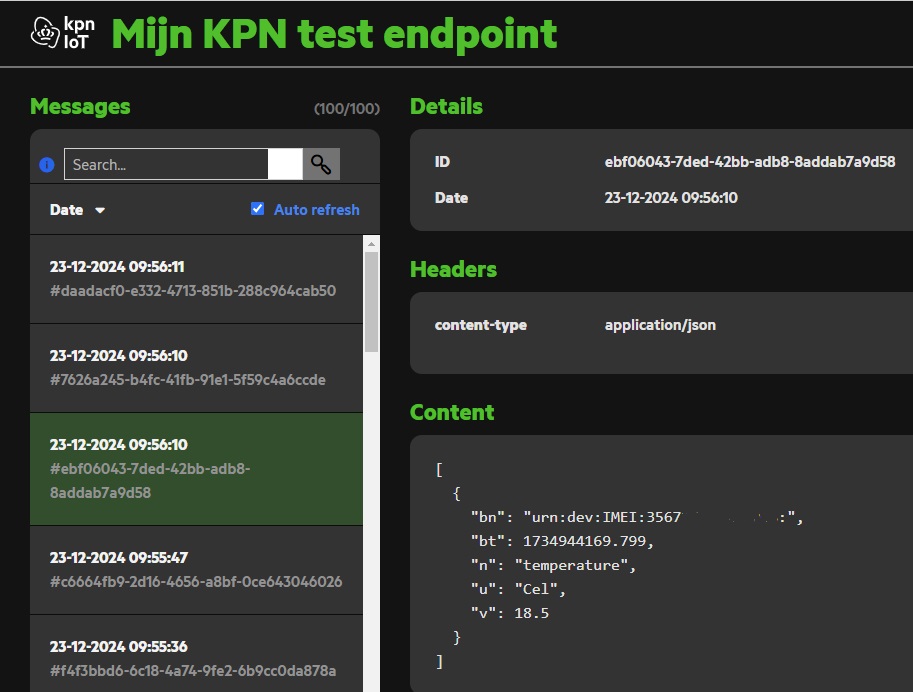
If the Test endpoint was setup the data from de device is also visible there.
---
# Agent Instructions
This documentation is published with GitBook. GitBook is the documentation platform designed so that both humans and AI agents can read, navigate, and reason over technical content effectively. Learn more at gitbook.com.
## Querying This Documentation
If you need additional information that is not directly available in this page, you can query the documentation by asking a question.
Perform an HTTP GET request on the following URL with the `ask` and `goal` query parameters:
```
GET https://docs.kpnthings.com/kpn-things/getting-started/tutorials/connect-devices/arduino-mkr-nb-1500.md?ask=&goal=
```
`ask` is the immediate question: it should be specific, self-contained, and written in natural language.
`goal` is what the user is ultimately trying to achieve, the reason they need the answer. Sharing it helps GitBook give you a better, more relevant answer. A goal is most helpful when it describes the outcome the user wants rather than restating the question. For example, with `ask=how do I create an API token`, a goal like `automate deployments from our CI pipeline` lets GitBook tailor the answer to that use case.
The response will contain a direct answer to the question and relevant excerpts and sources from the documentation.
Use this mechanism when the answer is not explicitly present in the current page, you need clarification or additional context, or you want to retrieve related documentation sections.