> For the complete documentation index, see [llms.txt](https://docs.kpnthings.com/kpn-things/llms.txt). Markdown versions of documentation pages are available by appending `.md` to page URLs; this page is available as [Markdown](https://docs.kpnthings.com/kpn-things/getting-started/tutorials/connect-devices/sodaq-r412m.md).
# SODAQ R412M
This is an old development board which is no longer available for purchase and should not be used for new designs.
A nifty, industry standard IoT developer board that allows you to utilize LTE-M networks with integrated GPS, Accelerometer and Magnetometers, Grove Connectors, JST connectors and Arduino compatible open source software that allows for low-power applications.
This getting started targets the [SODAQ SARA Arduino Form Factor (AFF) R412M](https://support.sodaq.com/Boards/Sara_SFF/) device. Probably other AFF and SFF SODAQs with an R41xM module will work, but we did not test them (yet). If you share your experiences with one of these devices, we can update this manual!
This getting started will give you step by step instructions to get your KPN Things M2M developer kit connected to KPN Things!
## 1. Get everything you need
Before we start, you should check if have all necessary components:
1. KPN Things SIM card
2. SODAQ SARA AFF R412M Board
3. PCB Antenna
4. LiPo Battery
### Request test SIM cards
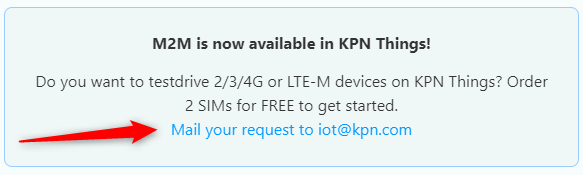
After registration there is another step in order to receive test SIM cards, since we don't know your home address yet to send them to! After registering and logging in for the first time, click on the link in the **M2M is now available in KPN Things!** notification box on the home page and follow the directions.
You will receive your test SIM cards in a couple of days. The SIM cards will be added to your Portal account already, ready to go!
## 2. Prepare your development environment (Arduino IDE)
> This part of the manual is based on the [Getting Started of SODAQ](https://support.sodaq.com/getting_started/).
### Setup your Arduino IDE
With the Arduino IDE we will write our code and program it on the Device.
* Download the [Arduino IDE](https://www.arduino.cc/en/Main/Software) and follow the installer.
* Open your freshly installed Arduino IDE.
### Download the board configuration files for Sodaq boards
When your IDE is all started, execute the following steps to install the Sodaq board configuration files.
* Click on **File > Preferences**
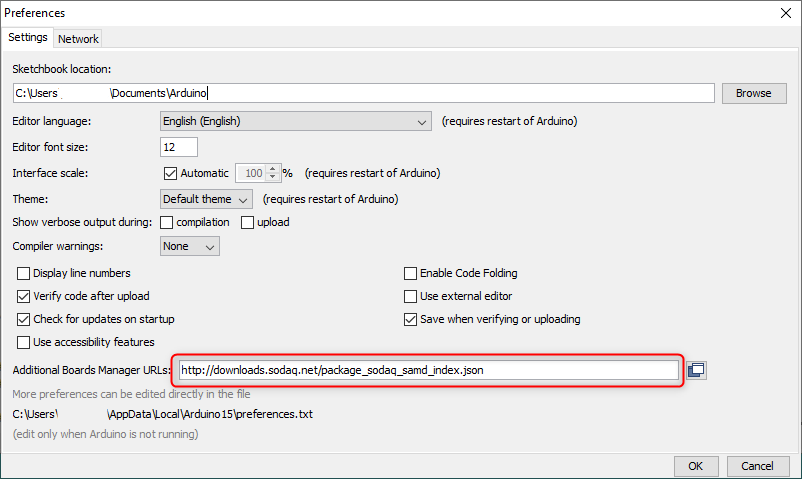
* At the bottom you should see **Additional Boards Manager URLs**. This is where you need to paste the following URL:
```
http://downloads.sodaq.net/package_sodaq_samd_index.json
```
After adding the URL, your preferences screen should look like this:
* Close the preferences screen with **OK**
* Click on **Tools > Board:… > Boards Manager**…
* Search for *SODAQ*.
* Click on **SODAQ SAMD Boards** and an install button will appear.
* Click **Install** to install the latest version of your selected board collection.
* When the installation is done, click **Close.**
## 3. Prepare your Device
### Assemble your Device
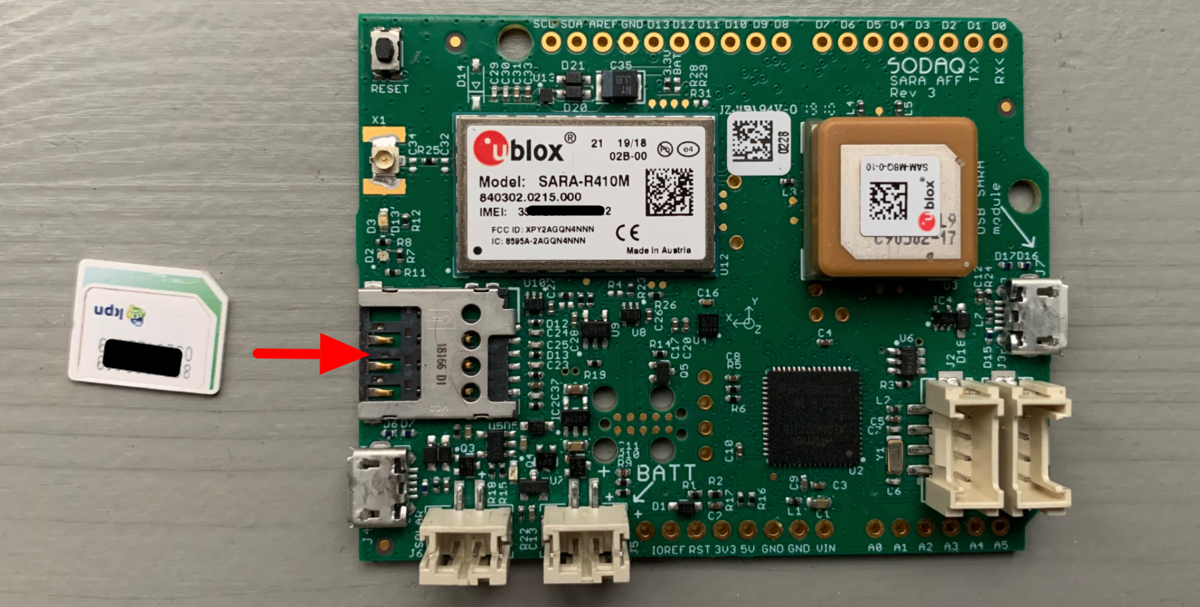
Step 1: Insert the KPN Things SIM card.
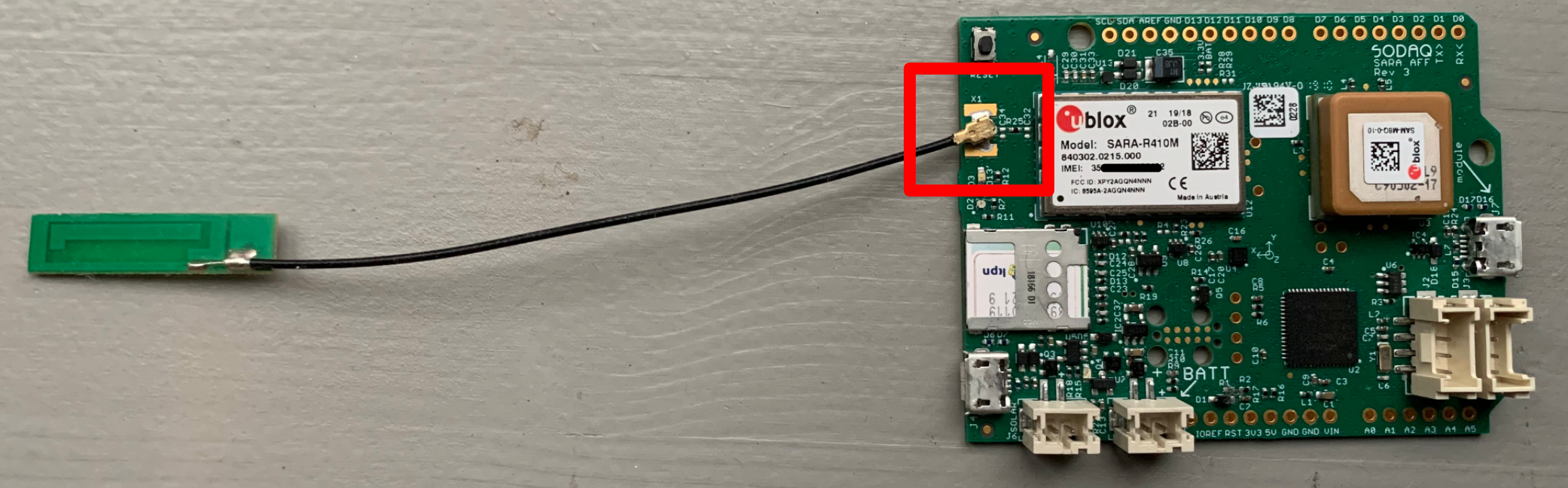
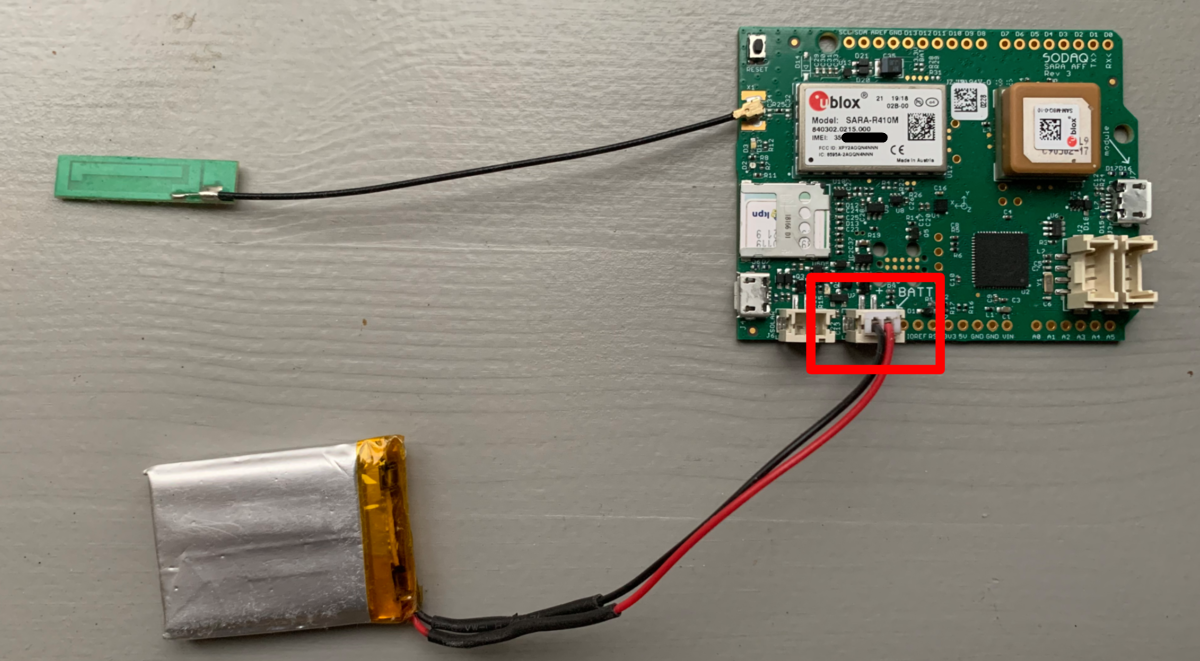
Step 2: Connect the antenna. Push the connector straight on the board.
Step 3: Connect the battery to the right terminal on the board, the one stating **BATT**.
Step 4: Connect the USB cable to the left USB port, the one next to the SIM card slot.
{% hint style="warning" %}
Make sure you **connect your battery** when using the board, else the module won't work correctly!
{% endhint %}
### Configure your Arduino IDE
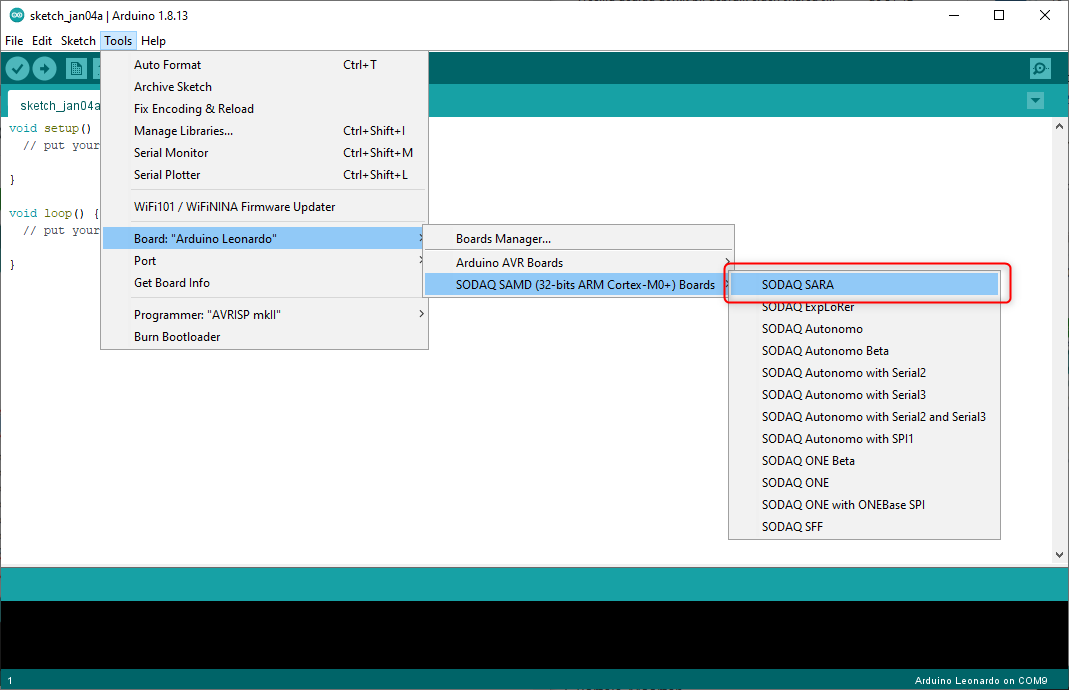
* From the **Tools** menu, under **Board**, select the correct board type:
| Device | Board type |
| ------------------------------------------ | -------------- |
| SODAQ SARA Arduino Form Factor (AFF) R412M | **SODAQ SARA** |
* Also from the **Tools** menu, under **Port**, make sure the correct COM port is selected. If you have multiple options, select the one stating *SODAQ SARA*.
{% hint style="warning" %}
If none of your ports is labelled that way, disconnect your SODAQ, reopen the menu, check which COM port disappeared, reconnect the SODAQ and choose the previously identified COM port.
{% endhint %}
### Upload test sketch
*With this test sketch we are going to check whether your Device works.*
* Copy the passthrough example code from the following SODAQ documentation page:
{% embed url="" %}
* Paste the passthrough example code in you Arduino IDE.
* Uncomment the third line, since you have a u-blox R4*xx* module
* From the **Sketch** menu, click **Upload** to send the software to your SODAQ.
If all went well it will say the following in the bottom of the Arduino IDE:
```
Verify XXX bytes of flash with checksum.
Verify successful
done in XXX seconds
CPU reset.
```
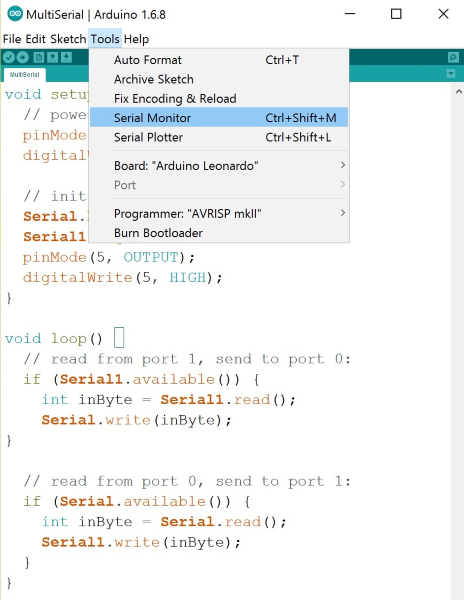
* Meanwhile, from the **Tools** menu, open the **Serial Monitor**
* In the *Serial Monitor*, select **Both NL & CR** and set the baud rate to **115200 baud** (#1 in the screenshot below).
* \#2 in the screenshot above illustrates where you can enter commands to be sent to the u-blox module that sits on your Development board.
* \#3 shows where you will see the responses from the module.
* Use the command `AT+GSN` to get the IMEI of your module.
* You will be needing this value when registering your Device in the next step of this getting started.
* Additionally, with the command `ATI9` you can check your firmware version.
The latest firmware version for the **R412** is `M0.10.00,A.02.14` *(as of November 2020)*
#### Available commands
| Command | Description | Expected response |
| -------- | -------------------- | ------------------------------------------------------------------------------------- |
| `AT` | Communication test | `OK` |
| `ATI9` | Firmware version | Some ID. |
| `AT+CSQ` | Check signal quality |
No connection: +CSQ: 99,99
Good connection: value around 20
|
| `AT+GSN` | Fetch IMEI of module | |
The [SODAQ passthrough documentation](https://learn.sodaq.com/Boards/Sara_SFF/examples/passthrough/#r4) gives some more available commands. \
All available commands can be found in the [SARA-R4 AT commands manual](https://www.u-blox.com/en/docs/UBX-17003787) of u-blox.
## 4. Register your Device to KPN Things
### Open the KPN Things Portal
Open the [KPN Things Portal](https://portal.kpnthings.com). Go to the **All Devices** page and click on **Add new Device**.
### Fill in your device information
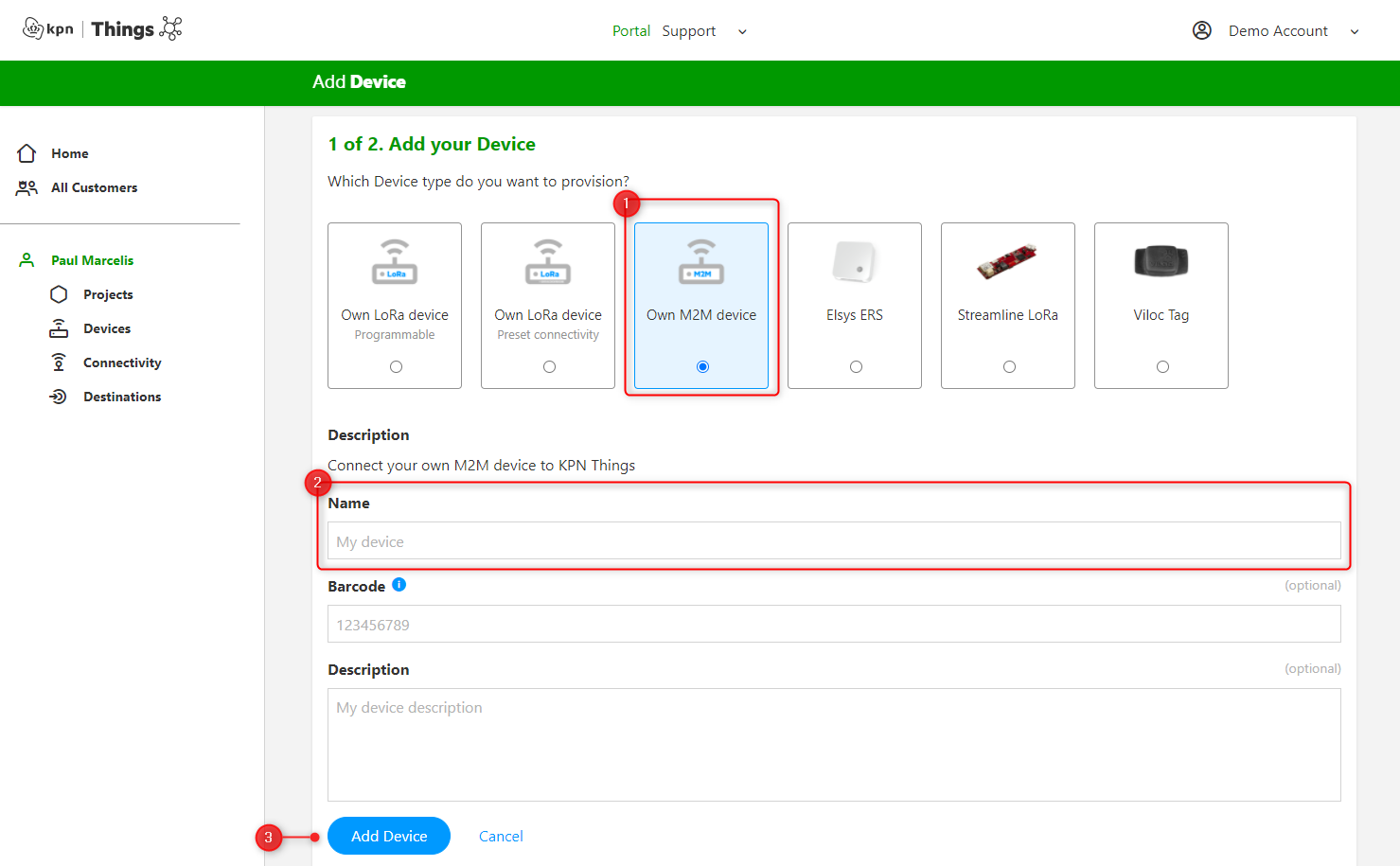
1. Select the **Own M2M device** device type.
2. **Enter a name** for your SODAQ device.
3. Click **Add Device** to continue.
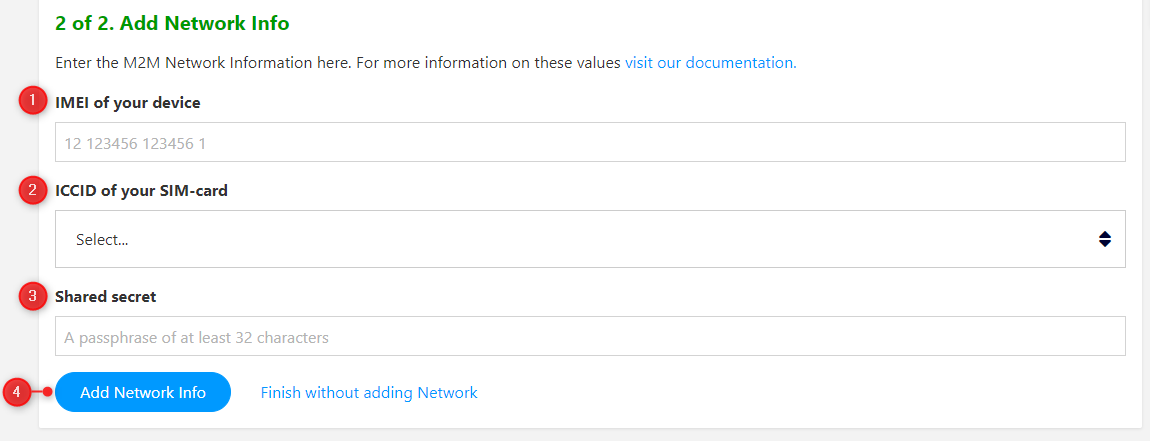
### Provide Network Information
Now enter the M2M specific information of your Device.
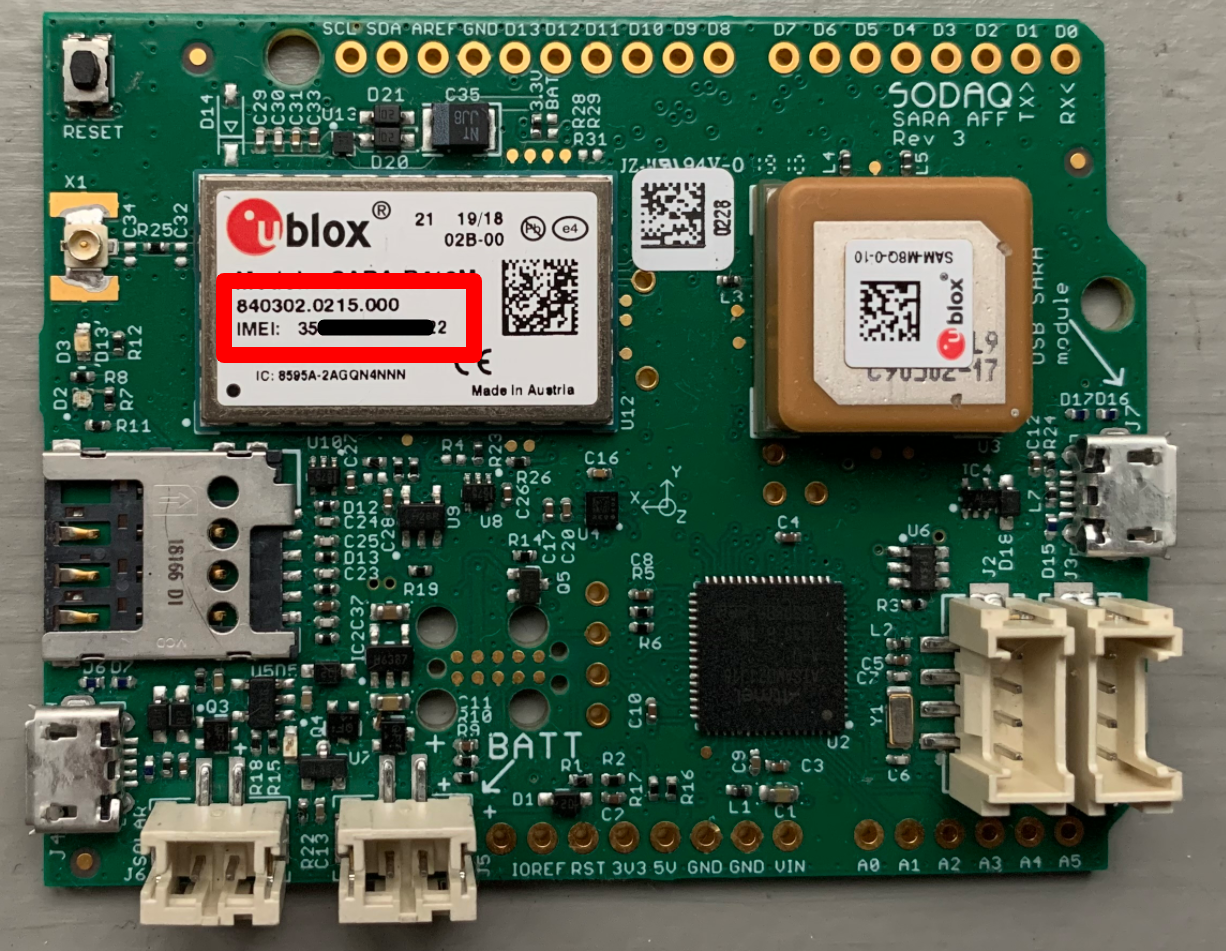
1. **IMEI** of your Device. This value is printed on your u-blox module:
2\. **ICCID** of your SIM card. This value is printed on your SIM card. Select the correct SIM card from the drop down.
If you have an Early access SIM, you choose the option "Add early access SIM" and enter the ICCID of the SIM manually in the newly appeared input field.
3\. **Shared secret** - a kind of password for the future data coming from your Device. Here you should come up with a unique password containing at least:
* One lower case character.
* One upper case character.
* One number.
* One special character.
* 32 characters in total.
The shared secret should also be programmed into your Device in step 5.
4\. Click **Add Network Info** to save the network information and then **Finish** to continue.
[Learn more about M2M in KPN Things](/kpn-things/building-blocks/connectivity/connecting-m2m-devices.md).
## 5. Program your device to send a message
In this step we are going to flash the Device with a program to send data to KPN Things.
### Download the ThingsML and Sodaq libraries
The ThingsML library will provide code for your Device to communicate with KPN Things. The SODAQ libraries will provide code to interface with the components on the development board.
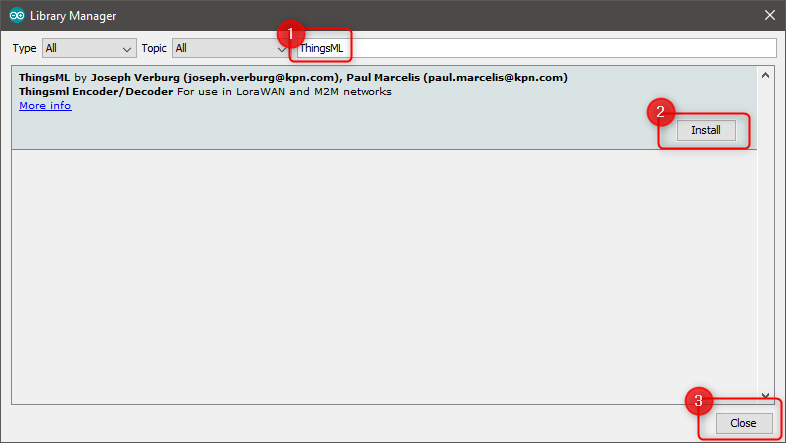
* From the **Tools** menu in your Arduino IDE click on **Manage Libraries...**
* Now, in the **Library Manager**, wait for all libraries to load.
* Then search and install the following libraries:
* ThingsML
* Sodaq\_LSM303AGR
* Sodaq\_R4X
* Sodaq\_wdt
* When the installations are finished, click **Close**.
### Upload the example sketch
This example will read the board temperature from the onboard thermometer and send it to KPN Things every 60 seconds.
From the **File** menu, click on **Examples.** Now find **ThingsML**, then select **sodaq,** and within that choose **sara\_aff\_temperature**.
### Fill device identifiers in example code
Look for the following part in the example code and fill in the missing values:
```c
/*
* Configuration
*/
#define DEVICE_URN "urn:dev:IMEI:--fill-me--:"
#define DEVICE_KEY "--fill-me--"
/* ... */
#define APN "--fill-me--"
```
* Device URN should be completed with the **IMEI** of your Device.
* *Make sure you leave the trailing colon `:` in place in the `DEVICE_URN` variable!*
* Device Key should be filled with the **Shared secret** of your Device.
* APN should be filled with one the following value two values. Your SIM card is one of two types, which you can see in the *Connectivity* list in KPN Things.
1. For **M2M Easy** use `kpnthings.iot`
2. For **M2M Advantage** use `kpnthings2.m2m`
Roughly: If you received your SIM card after June 2023, it's most likely an M2M Advantage.
### Run the sketch
* **Upload** the sketch to your Device and open the **Serial Monitor**. The device will report some of the setup steps it will perform:
```
Console open
Turning on modem...
Connecting to network...
```
This means your Device is trying to connect to our LTE-M network. After some seconds the following lines will appear:
```
Network connected
Sending message...
Receiving message...
Message response length: 97
Message response:
HTTP/1.1 202
Date: Tue, 03 Nov 2020 13:42:47 GMT
Content-Length: 0
Connection: keep-alive
Message sending finished.
Modem off
------------
```
This means your Device has join our network and has sent its first uplink message to KPN Things!
### Check incoming data in the Portal
Now your Device has connected to the network and is sending data, you should visit the [Device Detail Page](https://docs.kpnthings.com/portal/concepts/devices#device-detail-page) in the Portal of the Device you created in step 4.
In the connectivity block, you should see that the **last message time** indicates that KPN Things just received a message from your Device!
## 6. Setup data flow in KPN Things
You now successfully connected your M2M device to KPN Things! To further setup your data flow in KPN Things, you should can go to the next step:
{% content-ref url="/pages/tgUjCO6EqVI9N2sEtZSR" %}
[Configure a flow](/kpn-things/getting-started/tutorials/configure-a-flow.md)
{% endcontent-ref %}
## More information
Interested in expanding the example sketch to make the Device do exactly what you want? Use the following references to find more information on Things code and SODAQ code:
* The **ThingsML library** contains another SODAQ example that reads out the GPS module and sends latitude and longitude to KPN Things.
* The **SODAQ Support pages** contain several examples to read out the sensors you can find on the SODAQ boards: [https://support.sodaq.com/Boards/Sara\_SFF/examples/](https://support.sodaq.com/Boards/Sara_SFF/examples/passthrough/).
* Additional documentation on the ThingsML library can be found in Github:
---
# Agent Instructions
This documentation is published with GitBook. GitBook is the documentation platform designed so that both humans and AI agents can read, navigate, and reason over technical content effectively. Learn more at gitbook.com.
## Querying This Documentation
If you need additional information that is not directly available in this page, you can query the documentation by asking a question.
Perform an HTTP GET request on the following URL with the `ask` and `goal` query parameters:
```
GET https://docs.kpnthings.com/kpn-things/getting-started/tutorials/connect-devices/sodaq-r412m.md?ask=&goal=
```
`ask` is the immediate question: it should be specific, self-contained, and written in natural language.
`goal` is what the user is ultimately trying to achieve, the reason they need the answer. Sharing it helps GitBook give you a better, more relevant answer. A goal is most helpful when it describes the outcome the user wants rather than restating the question. For example, with `ask=how do I create an API token`, a goal like `automate deployments from our CI pipeline` lets GitBook tailor the answer to that use case.
The response will contain a direct answer to the question and relevant excerpts and sources from the documentation.
Use this mechanism when the answer is not explicitly present in the current page, you need clarification or additional context, or you want to retrieve related documentation sections.