> For the complete documentation index, see [llms.txt](https://docs.kpnthings.com/kpn-things/llms.txt). Markdown versions of documentation pages are available by appending `.md` to page URLs; this page is available as [Markdown](https://docs.kpnthings.com/kpn-things/getting-started/tutorials/send-instruction-to-lora-device-page.md).
# Send instruction to LoRa Device page
Learn how to send an instruction (downlink) to your LoRa Device
Note that for this tutorial you need to use a **LoRa** device.
## 1. Request downlink
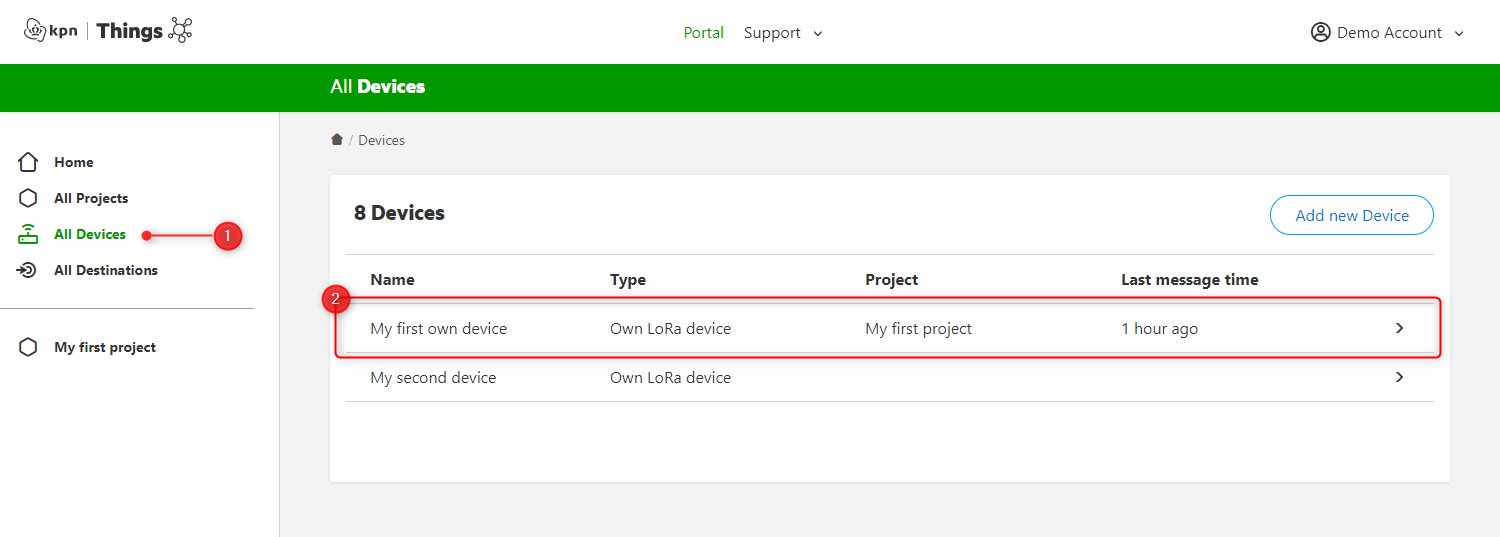
Go to the **All Devices** page and click on the device you want to send a downlink to.
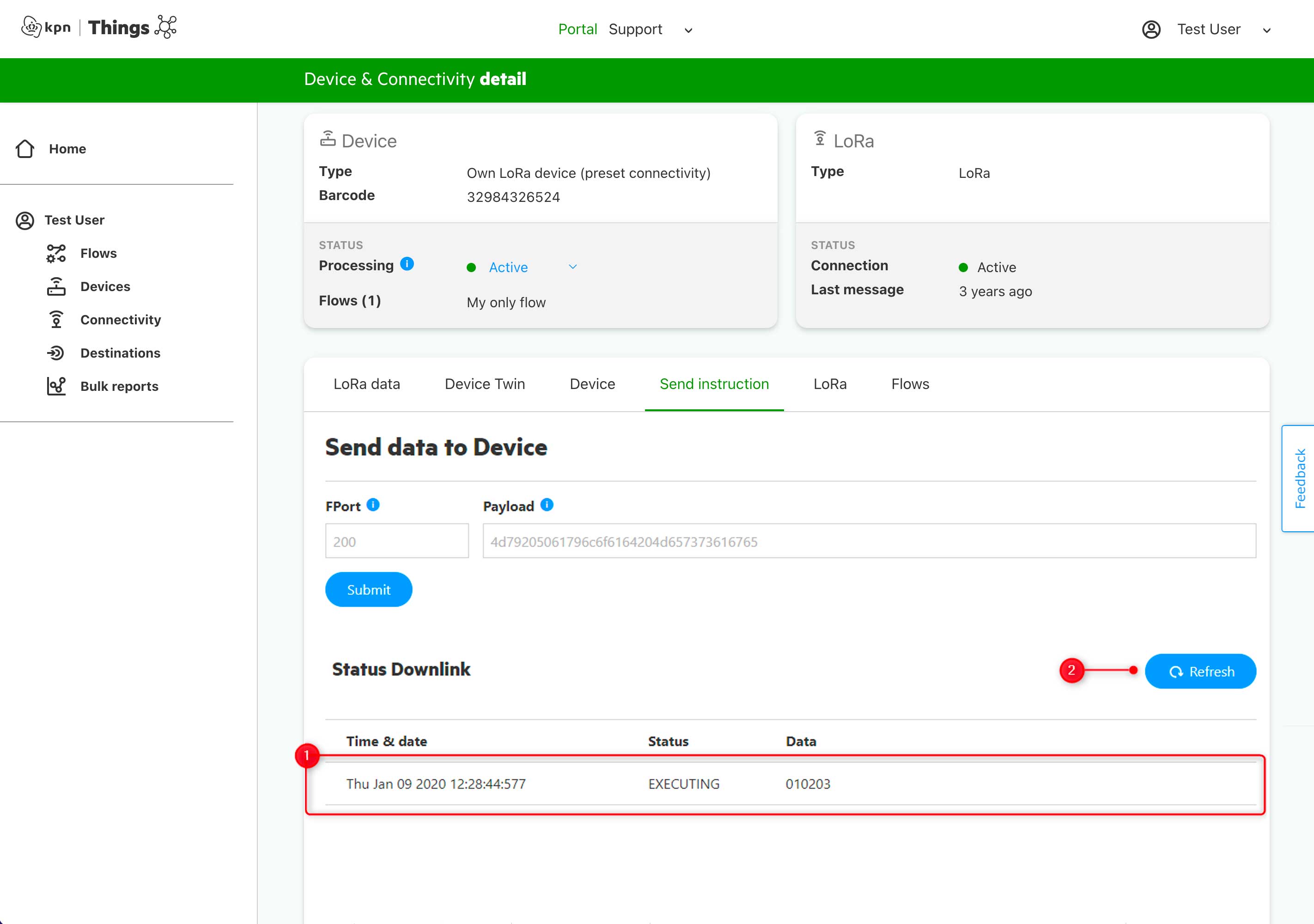
Open the **Send Instruction** tab. There you will find the input fields to send a downlink to your LoRa device:
* **FPort**: is the LoRa application port on which to send the data. If you don't use application ports on your device, you can just use `1`.
* **Payload**: is the data you want to send to your device, written in hexadecimal characters. You could use for instance `010203`.
Click **Submit** to request the downlink to be sent to the device.
## 2. Check status of downlink
After requesting the downlink, under **Status Downlink** your downlink will have appeared. Maybe you first see your downlink with the PENDING status, meaning it is still being processed, but if you hit the **refresh button** (#2 in the screenshot) you should see it switching to EXECUTING.
**Queuing**\
At most one downlink can be in EXECUTING at a time. When you submit more downlinks, they will stay in the PENDING state and they will be processed "first in first out". You can have at most 5 downlinks in PENDING. As long as a downlink is in PENDING mode, you can cancel it. If you do so, it will not be send anymore and the status will change to CANCELLED.
Learn more about [downlink statuses](https://docs.kpnthings.com/kpn-things/building-blocks/devices#downlink-status). LoRa Downlinks sent through KPN Things are always Confirmed downlinks. That way we trigger an Acknowledgement (ACK) from the device in the next uplink, and with that information we can determine whether a downlink was received or not.
Click on the refresh button (#1 in the screenshot) to refresh your **Data History** table. There should now be an uplink record following your downlink record that contains an ACK (#2 in the screenshot).
* If the uplink containing the ACK was not received by the network, you will see your downlink is still in EXECUTING. When a next uplink is received we conclude the downlink as FAILED, since we do not know for sure whether the downlink has been received. You could state that the quality of service for downlinks through KPN Things is "at least once".
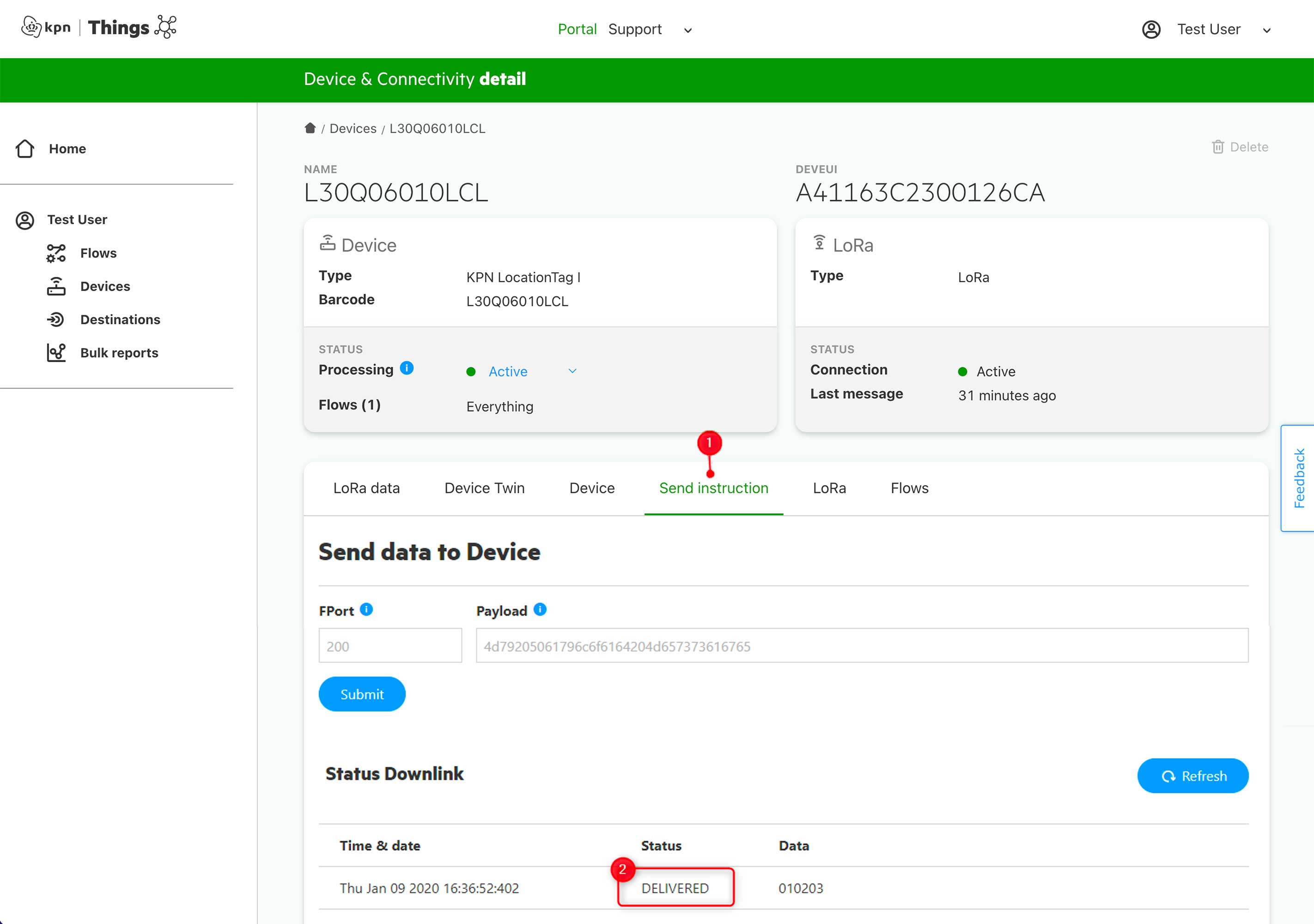
If you switch back to the **Send Instruction** tab, you should see that the status of your requested downlink has switched to DELIVERED. That means the acknowledgement has been received by the network.
{% hint style="info" %}
**You can also send downlinks by API calls**
Are you interested in sending downlinks to your Devices through API calls? That is also possible! Head on over to our [API access](/kpn-things/general-functions/apis.md) to learn how.
{% endhint %}
## Optional: send your data to Azure SQL
---
# Agent Instructions
This documentation is published with GitBook. GitBook is the documentation platform designed so that both humans and AI agents can read, navigate, and reason over technical content effectively. Learn more at gitbook.com.
## Querying This Documentation
If you need additional information that is not directly available in this page, you can query the documentation by asking a question.
Perform an HTTP GET request on the following URL with the `ask` and `goal` query parameters:
```
GET https://docs.kpnthings.com/kpn-things/getting-started/tutorials/send-instruction-to-lora-device-page.md?ask=&goal=
```
`ask` is the immediate question: it should be specific, self-contained, and written in natural language.
`goal` is what the user is ultimately trying to achieve, the reason they need the answer. Sharing it helps GitBook give you a better, more relevant answer. A goal is most helpful when it describes the outcome the user wants rather than restating the question. For example, with `ask=how do I create an API token`, a goal like `automate deployments from our CI pipeline` lets GitBook tailor the answer to that use case.
The response will contain a direct answer to the question and relevant excerpts and sources from the documentation.
Use this mechanism when the answer is not explicitly present in the current page, you need clarification or additional context, or you want to retrieve related documentation sections.