
# M2M connectivity configuration

The M2M Connectivity configuration page gives you the opportunity to choose the **communication** and **rate plan** that best suits your application.

#### Cisco synchronisations

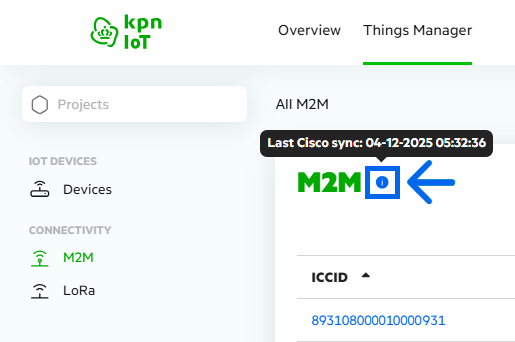
For M2M connectivity, the information is synchronised with the source system, **Cisco Control Center**. This **sync** is performed daily. If you’ve made changes directly in Cisco Control Center, the list may show **outdated** information. However, when you view an **individual** connection, the latest data for that item is always retrieved.

You can check when the **last synchronisation** took place by clicking the <img src="/files/9tG2znCN2kI0fuOAYqeI" alt="" data-size="line"> icon.

<div align="left"><figure><img src="/files/26bDzdO5uYlr3KhGDjnt" alt="" width="386"><figcaption><p>Last Cisco sync</p></figcaption></figure></div>

#### Search by ICCID

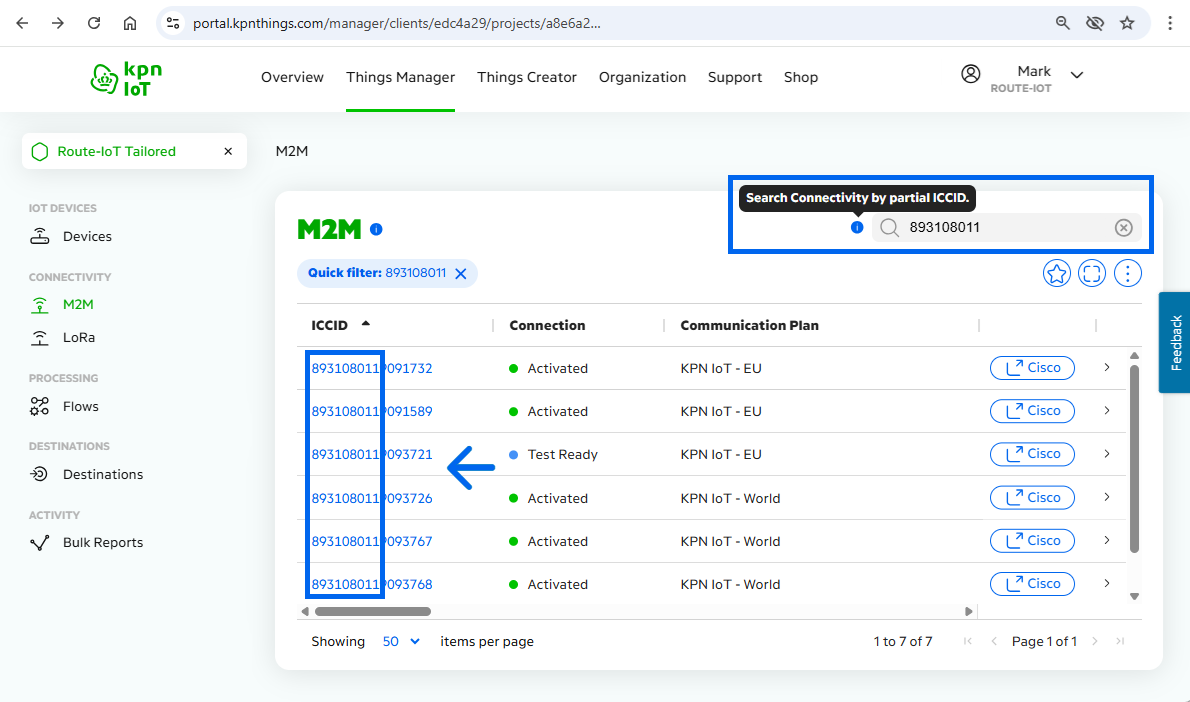
Use the search field to look up the **ICCID** number of the simcard. If you enter **part** of the number, you’ll get a list of all ICCIDs containing **those** digits.

<div align="left"><figure><img src="/files/gBBsp71EfsFjlShwBkXY" alt=""><figcaption><p>Search field</p></figcaption></figure></div>

#### Open ICCID details

In the Things Portal, we can show you all M2M **details** for an ICCID, such as activation dates, usage, and technical information.

1. Click **anywhere** on the line or the <img src="/files/y9PPmDNZiHvGoyY2Uswa" alt="" data-size="line"> icon at the **end** of the row
2. When the **Cisco** button is available, you can open the ICCID information in **Cisco Control Center** directly from the Things Portal

{% hint style="warning" %}
If you are **not** logged in to Cisco Control Center, you will **first** see a login screen when you click the Cisco button.

If you are **already** logged in, clicking this button will **immediately** open the ICCID in Cisco Control Center.
{% endhint %}
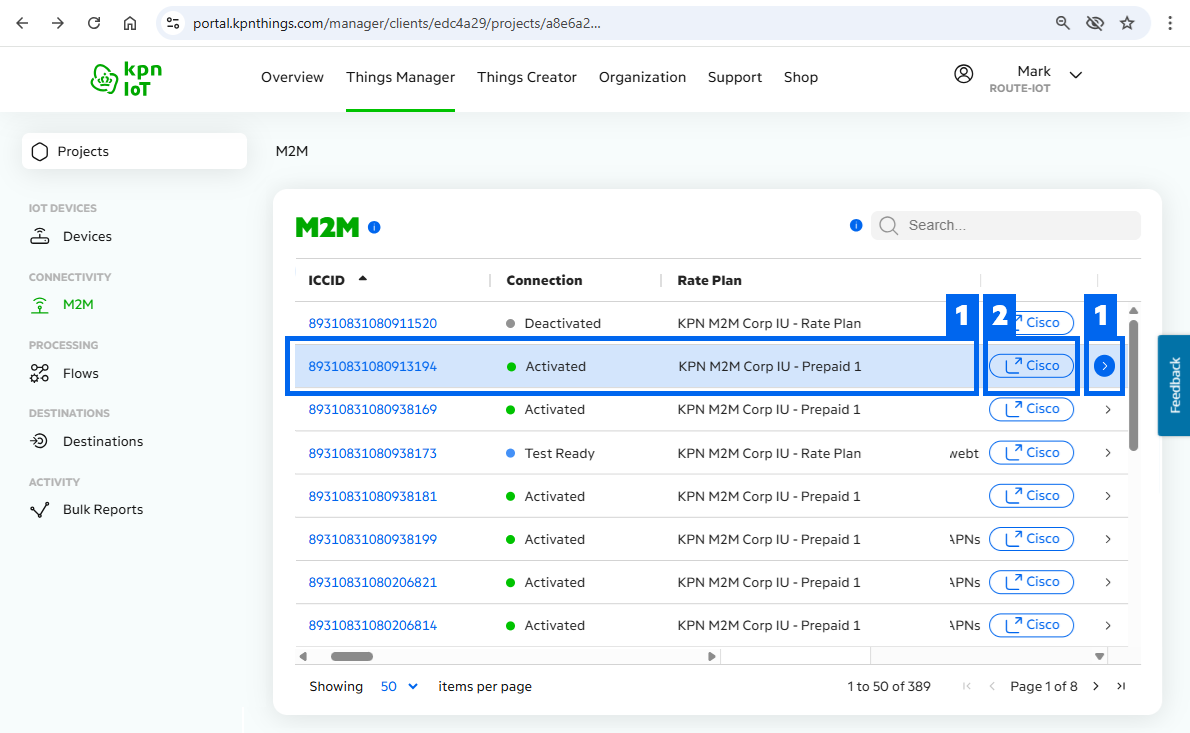
<div align="left"><figure><img src="/files/OY4vkxYQYT81coHZouPN" alt=""><figcaption><p>Open ICCID details</p></figcaption></figure></div>

In the **M2M detail** overview, you will find all the **information** and can adjust **settings**:

1. [Device Summary](#device-summary) Summary of the device linked to the SIM card (optional)
2. [M2M Summary](#m2m-summary) Summary of the ICCID reference and status
3. [M2M Details](#m2m-details) Change the Communication and Rate Plan
4. [M2M Connectivity Configuration](#m2m-connectivity-configuration) View device details and change the device linked to the ICCID
5. [Billing](#billing) Show the billing details for the ICCID
6. [Ownership](#ownership) View the project and linked account details

<div align="left"><figure><img src="/files/6ozUQmVFTR3xBa6f3tFP" alt=""><figcaption><p>ICCID details</p></figcaption></figure></div>

#### Device Summary

In the **Connectivity Details** overview, you can also see the device **linked** to an ICCID. When you click on the device properties, you are automatically redirected to **Device Details**. A more detailed explanation of how this works can be found in [IoT Devices](/kpn-things/the-portal-explained/things-manager/iot-devices.md).

{% hint style="info" %}
For connectivity in a **Tailored** project, linking a device is **optional**. It can be used to keep track of which connectivity is associated with which device. However, the data is handled **outside** the Things Portal, and device management is not mandatory for Tailored projects.
{% endhint %}

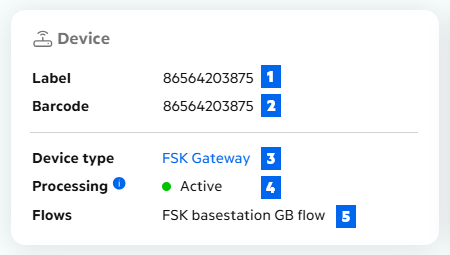
Below is a brief description of the **fields** displayed:

1. **Label** This is the name of the device
2. **Barcode** This is the unique identifier of the device, such as a barcode or serial number
3. **Device type** This defines the type of device and determines which decoder is applied
4. **Processing** This shows whether the data is processed and delivered to an endpoint
5. **Flows** This shows which data flow the device is linked to

<div align="left"><figure><img src="/files/vrytofYLAhpFTxpvdaWd" alt=""><figcaption><p>Device Summary</p></figcaption></figure></div>

#### M2M Summary

In the **M2M Summary Details** overview, you see an overview of the current settings of the simcard.

Below is a brief description of the **fields** displayed:

{% hint style="info" %}
For a **Tailored** project, the clickout button <img src="/files/310S1l8guFyDf5mvPj3m" alt="" data-size="line"> to Cisco Control may be available.
{% endhint %}

1. **Cisco** Clickout button to Cisco Control Center
2. **ICCID** This is the unique identifier of the simcard
3. **Connection** This is the status of the simcard
4. **Comm Plan** This shows the current communication plan setting&#x20;
5. **Rate Plan** This shows the current rate plan setting &#x20;
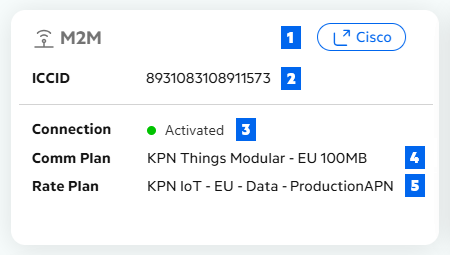
<div align="left"><figure><img src="/files/Hh9Zhnth8fEwJdOpU9Xy" alt=""><figcaption><p>M2M Summary</p></figcaption></figure></div>

#### M2M Details

You can change the simcard settings in the this section. If you are a **Tailored** user and also use **Cisco** for simcard management, you’ll notice that this information is synchronized automatically.

{% hint style="warning" %}
When you change simcard settings directly in **Cisco**, the updated information will be visible in Things Portal **after** the daily [Cisco synchronization](#cisco-synchronisations).
{% endhint %}

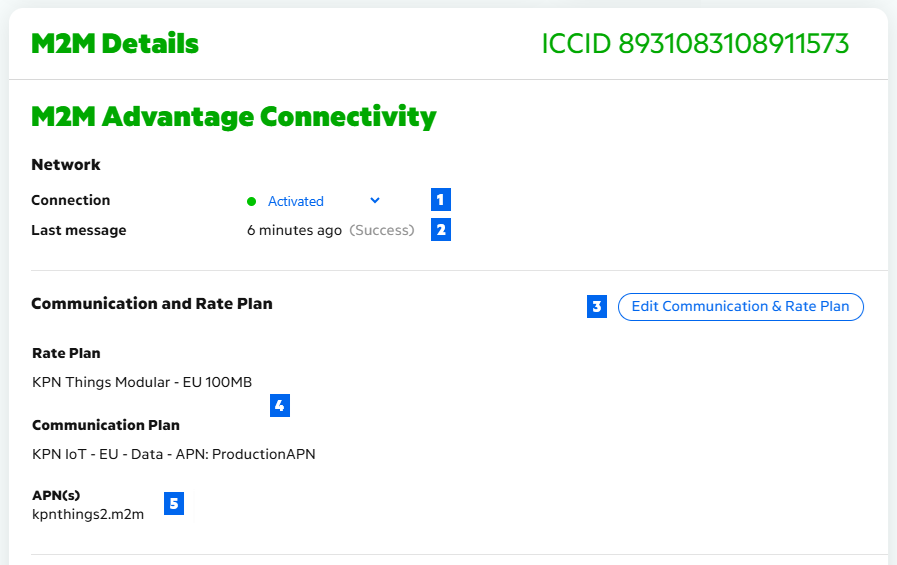
<div align="left"><figure><img src="/files/DLYuN7CVdVX9mfDdmqip" alt=""><figcaption><p>M2M Details</p></figcaption></figure></div>

**1. Connection**

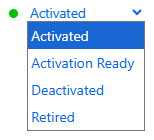
This hows the **current** status of the SIM card. You can **change** this status in this menu. Below is an **overview** of the available statuses, their meaning, and when to use them.

<div align="left"><figure><img src="/files/lF0zZT38JnJ4vI8XxFpJ" alt=""><figcaption></figcaption></figure></div>

| Status          | Description                                                                                   | When to use                                                     |
| --------------- | --------------------------------------------------------------------------------------------- | --------------------------------------------------------------- |
| Activated       | simcard is live and ready for data, voice, or sms services                                    | for simcards actively in use by a customer or device            |
| Activation Redy | simcard is configured and ready for quick activation after exceeding a minimum data threshold | for simcards prepared for deployment or large rollouts          |
| Deactivated     | simcard was active but is now turned off                                                      | for simcards that are temporarily not in use but reusable later |
| Retired         | simcard is permanently disabled and cannot be reactivated                                     | for simcards that are lost, damaged, or no longer needed        |

**2. Last message**

The **Last Message** field shows when data was last received from the SIM card. It provides an indication of whether the SIM is **functioning** correctly or when it was **last used**.

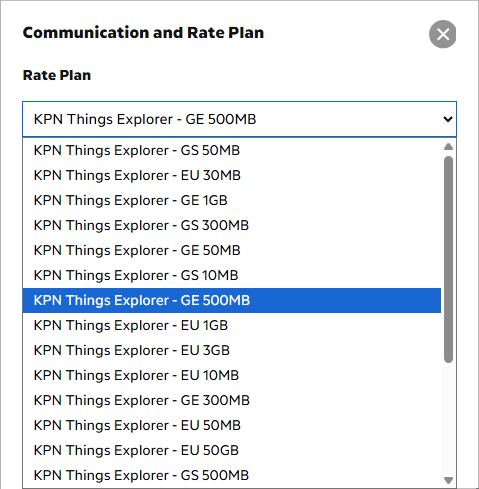
**3. Edit Communication and Rate Plan**

You can use the **pull-down** menus to change the SIM card settings. The available options may vary. If you are a **tailored** customer, there might be custom options designed specifically for your environment.

<div align="left"><figure><img src="/files/KpHlKiaF7ySVmGH2pfVt" alt=""><figcaption><p>Communication and Rate Plan</p></figcaption></figure></div>

**4. Communication and Rate Plan information**

These are the **current** settings for this simcard. When you change the communication and rate plan, the **new** settings will appear here.

**5. APN(s)**

The **Access Point Name** (APN) determines which gateway delivers your data traffic. This value cannot be set separately. It is linked to your **communication plan**. When you change the communication plan, the APN shown here may also change. For customers without a **Tailored** subscription, the APN is always kpnthings2m2m, ensuring that traffic is delivered to the **Things Portal**.

#### M2M Connectivity Configuration

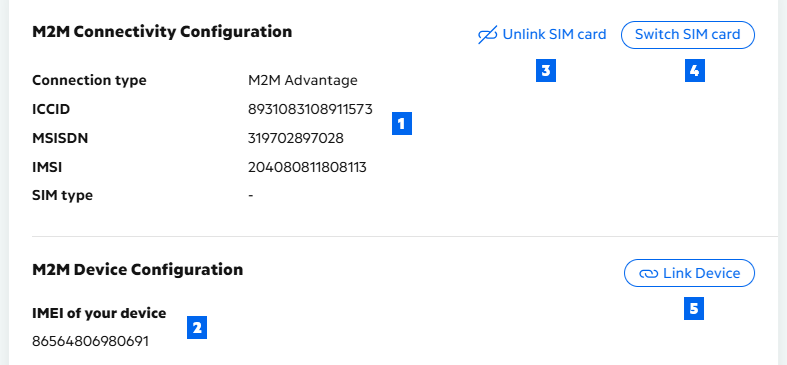
In this section, you can **disconnect** a SIM card from a device or **link** it to one. If there are issues with a SIM card, you can insert a different SIM card into the device and **confirm** the swap in the Things Portal.

<div align="left"><figure><img src="/files/memcxg0fJUTrrxTWzmep" alt=""><figcaption><p>M2M Connectivity Configuration</p></figcaption></figure></div>

**1. M2M Connectivity Configuration details**

Here you can **view** the hard configured **details** of the SIM card.

**2. M2M Device Configuration**

The **IMEI** number (International Mobile Equipment Identity) is a unique 15-digit code that identifies your **device**. This number is linked to the device, not to the SIM card.

#### Billing

\-

#### Ownership

\-


---

# Agent Instructions: Querying This Documentation

If you need additional information that is not directly available in this page, you can query the documentation dynamically by asking a question.

Perform an HTTP GET request on the current page URL with the `ask` query parameter:

```
GET https://docs.kpnthings.com/kpn-things/the-portal-explained/things-manager/connectivity/m2m-connectivity-configuration.md?ask=<question>
```

The question should be specific, self-contained, and written in natural language.
The response will contain a direct answer to the question and relevant excerpts and sources from the documentation.

Use this mechanism when the answer is not explicitly present in the current page, you need clarification or additional context, or you want to retrieve related documentation sections.