> For the complete documentation index, see [llms.txt](https://docs.kpnthings.com/kpn-things/llms.txt). Markdown versions of documentation pages are available by appending `.md` to page URLs; this page is available as [Markdown](https://docs.kpnthings.com/kpn-things/the-portal-explained/things-manager/projects.md).
# Projects
Manage your projects
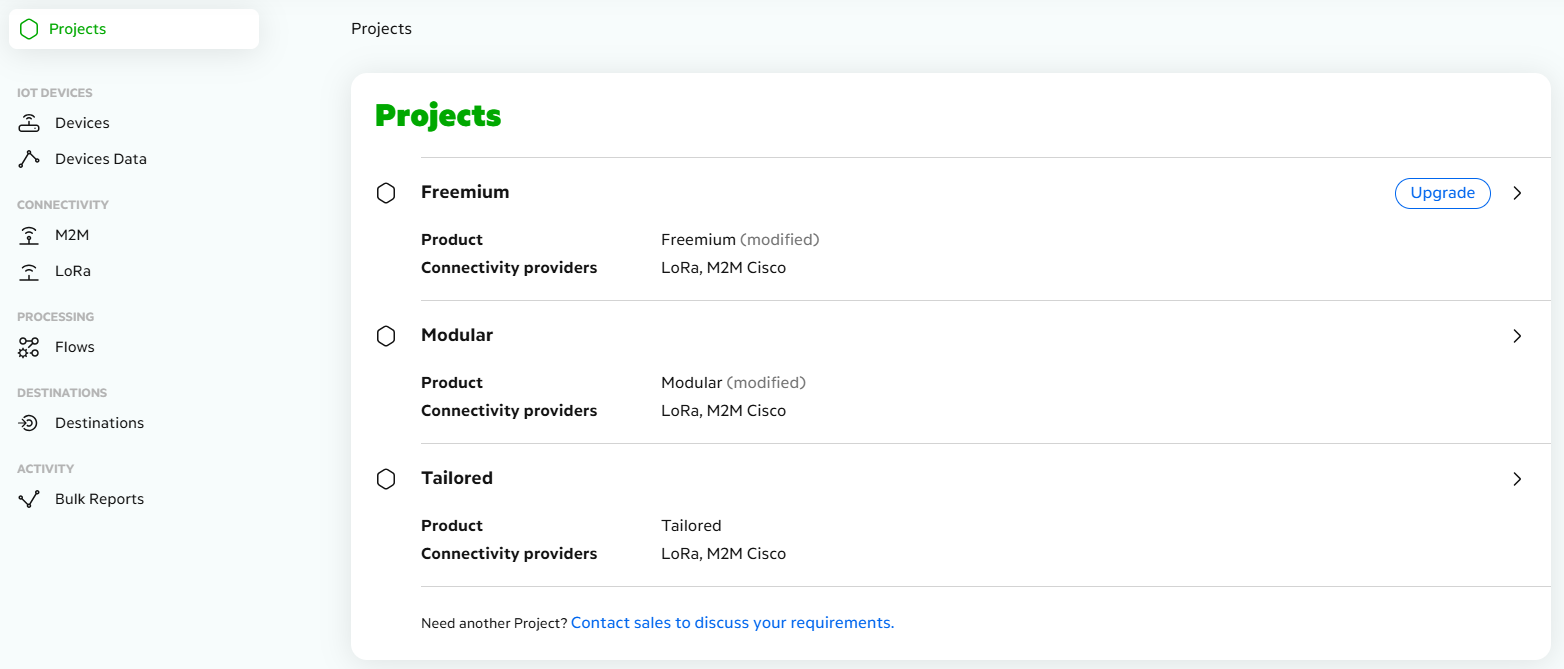
When you open **Things Manager**, you’ll start with an overview of your projects.\
The first step is to **select** the project you want to work with.
We’ll show you how this works
### Project overview
Once you select the desired project, the **Project Picker** field will automatically display the project name (see image below).
You are now on the **Project Overview** page. Here you can view everything included in this project, including the contract linked to it.
### Contract
To view the contract, first enable access by assigning the **Finance Read-only** role to your users in **GRIP**.
Need **help** managing your users in GRIP? Go to [**User Management**](/kpn-things/general-functions/user-management.md).
{% hint style="warning" %}
For now, this option is only available for **Explorer** and **Modular** contracts. This feature is currently not available for customers with a **Tailored** contract.
{% endhint %}
### Contract details
You are now on the **Contract Details** page.
This page is divided into several sections. First, you’ll see **Base Details**. This section shows key information about the contract, including the contract type and activation date.
Under **Implementation**, you’ll see the project linked to the contract.
Next, you’ll find the different items included in the contract. Items and discounts are shown by charge type: **recurring**, **one-time**, or **usage**. These items are grouped by product family. The regular price for each item appears in the **Unit Price** column next to the bold item name.
If applicable, optional **tiered** discounts are listed below the corresponding row. The actual discount depends on the quantity, with the applicable range shown in the **From** and **To** columns. These columns only appear if the contract includes at least one item with tiered discounts.